Past Perfect for Mac
Support documentation for the Mac app, including system requirements, key workflows, GFPGAN guidance, and feature notes.
Download
Get Past Perfect for Mac directly from the Mac App Store for automatic updates and seamless installation.

System requirements
- A Mac running macOS 14 (Sonoma) or later (including macOS Tahoe).
- Local storage space for your original images, edits, and exported files.
- An internet connection is only needed for downloading or updating the app. Editing and restoration run entirely on your device.
Overview
Past Perfect is a photo editor for digital photos, scans, family photos and everyday pictures. Editing runs entirely on the device, so your photos are not uploaded.
Past Perfect works non-destructively: your edits are saved automatically while the original image is preserved. The finished image is only created when you export. If Save copies is turned off, the original is overwritten.
Getting started
Add one or more folders to the library using the sidebar. You can expand subfolders and then select a photo from the strip below the preview.
Right-click a folder in the library to remove it from the library or start batch processing. Files on disk are not deleted when a folder is removed from the library.
Useful keyboard shortcuts: ← / → for the previous or next photo, ⌘E to export and ⌘+ / ⌘- to zoom.
Editing tools
You will find the editing tools in the inspector on the right. They are grouped into tabs by task:
- Light: Adjusts brightness and tonal values, including exposure, contrast, highlights, shadows, black point and white point. It also includes midtones, noise, clarity and sharpness. Automatically improve analyzes the image and suggests suitable slider values.
- Color: Provides temperature, color cast, saturation and vibrance, plus a Color Mixer for eight color ranges. For each range, you can adjust hue, saturation and brightness independently. You can also import LUT files and use them as a color look.
- Looks: Contains ready-made image looks, including black-and-white, color and dithering looks. Looks can be mixed with the original image. The farther the slider is moved to the right, the stronger the look becomes. You will also find vignetting and frames here.
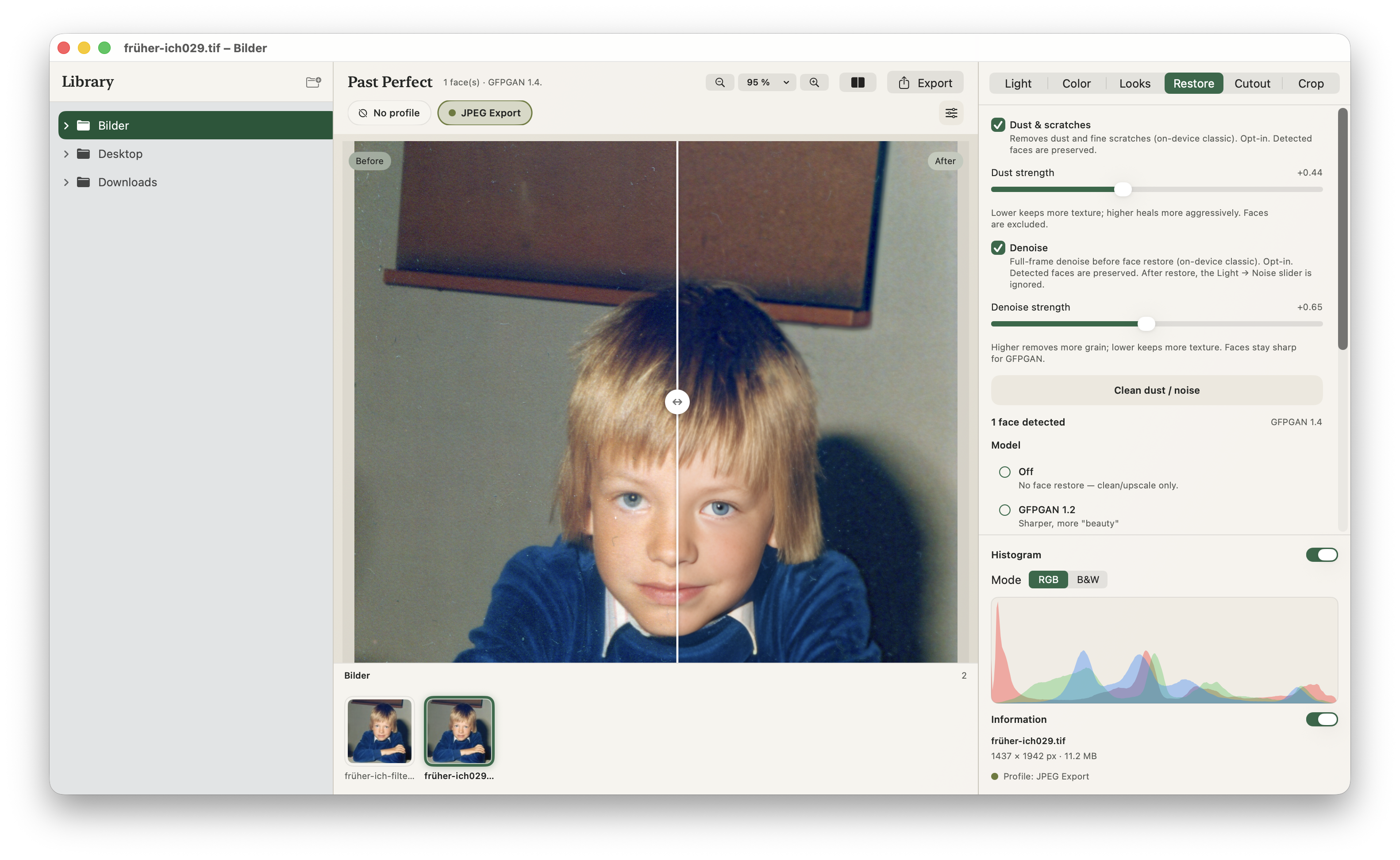
- Restore: Contains optional tools for cleaning up and restoring damaged or out-of-focus images: dust and scratches, denoise, face restoration and upscaling. The individual steps can be enabled independently.
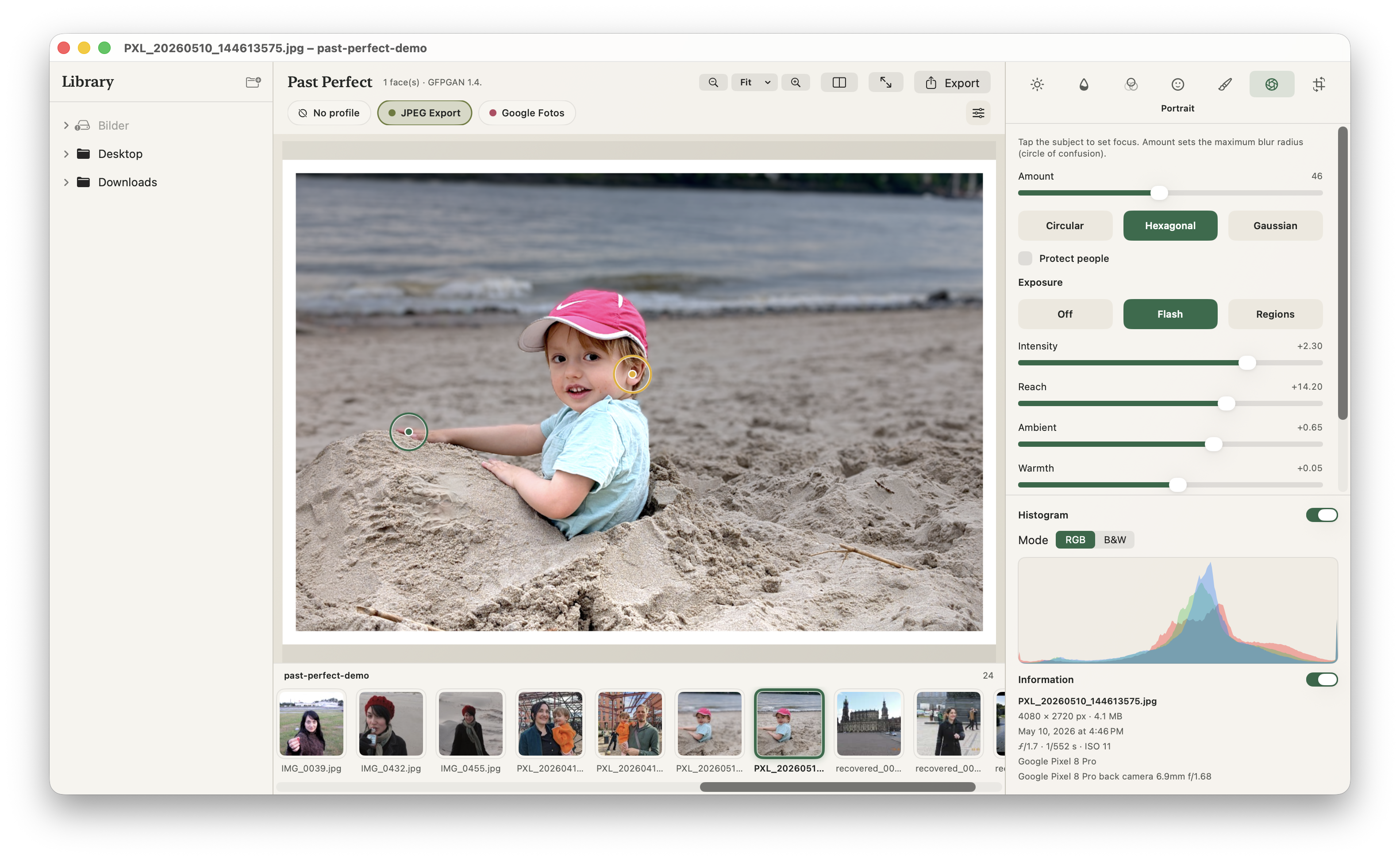
- Portrait: Adds background blur (bokeh), selective exposure by depth, and optional flash lighting. Tap the subject to set focus; everything runs on-device.
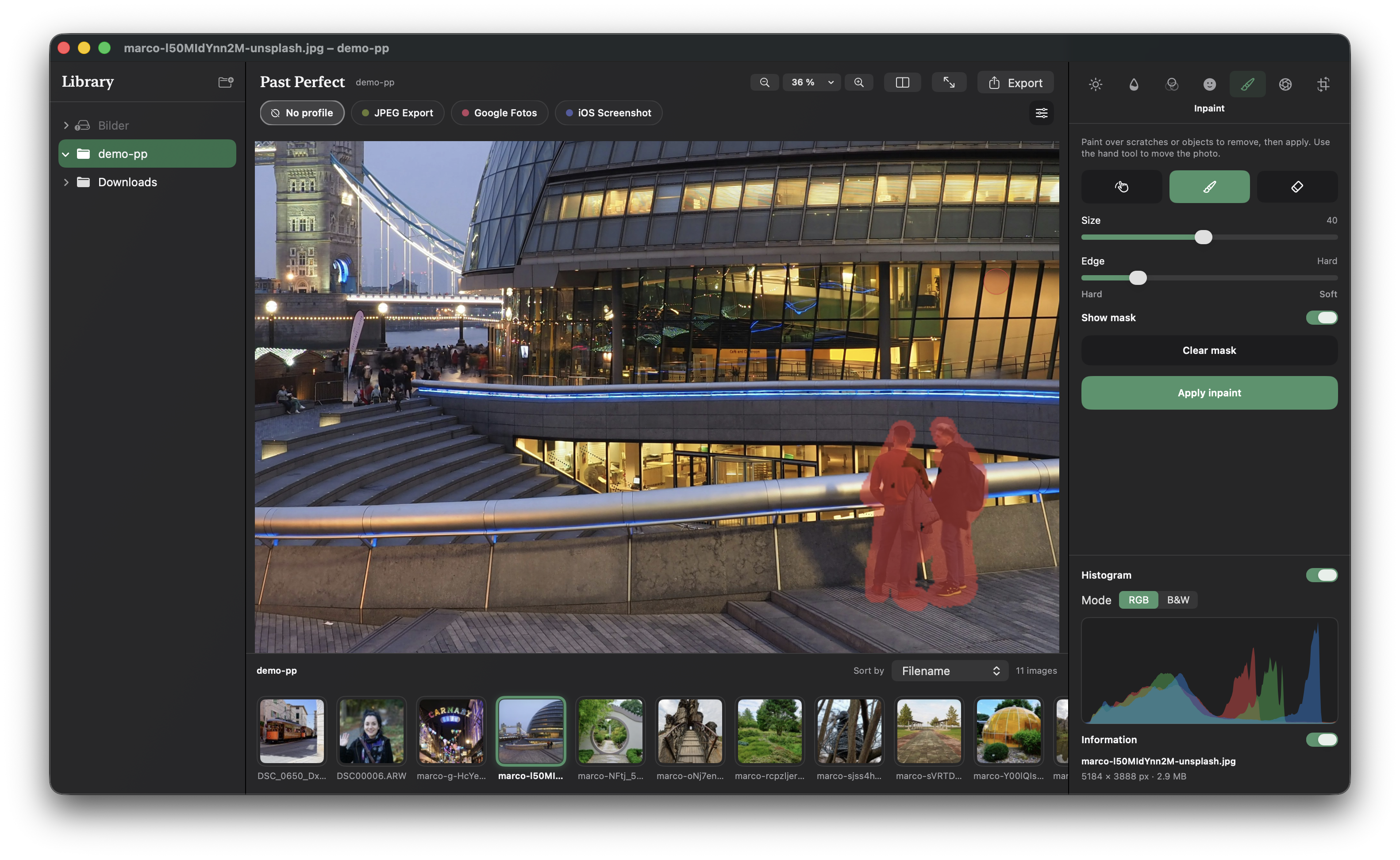
- Inpaint: Paint over scratches, date stamps or unwanted objects to remove them. Processing runs entirely on your device.
- Remove background: Removes the background using Apple Vision directly on the device. If transparency should be preserved, save or export the result as PNG.
- Transform: Lets you rotate and mirror images, straighten the horizon and crop the image to the desired aspect ratio.
Portrait mode
Portrait mode with background blur, selective exposure adjustments and flash lighting. Tap the subject to set the focus plane, then dial the blur amount and bokeh style (circular, hexagonal or Gaussian). Optional flash and depth-based exposure controls let you shape light without leaving the device.
Inpaint & retouch
Use Inpaint to remove unwanted objects or repair local damage. Paint over the area with the brush, adjust size and edge softness as needed, then choose Apply inpaint. The hand tool pans the photo; the eraser trims the mask. Everything runs on-device — the image is not uploaded.
Typical uses include date stamps, sensor dust spots, small scratches and other distractions you want gone without rebuilding the whole photo.
Dust, scratches and denoise
Under Restore, you can optionally clean up an image before face restoration. These functions are disabled by default and are only applied when you enable them:
- Dust and scratches: Detects and reduces typical small defects such as dust spots and scratches. A higher strength removes more, but can also smooth out fine image details.
- Reduce noise: A stronger denoise operation applied to the entire image, particularly useful for noisy or scanned images.
If several Restore steps are enabled, they are processed in a fixed order: first dust and scratches, then denoise, followed by face restoration and finally optional upscaling.
The noise reduction under Light is a gentle adjustment that changes the image directly. Full-image denoise under Restore is a separate processing step and can also be included in a profile.
Restore faces & focus
GFPGAN versions for face restoration (no single version suits every photo — if the result does not look natural, try another model):
- GFPGAN 1.4: Bundled. Intervenes the least and is best for subtle correction with minimal “AI look”. It works well when you want only light improvement, including on low-quality or slightly out-of-focus shots. It is not necessarily the best choice for heavily damaged faces.
- GFPGAN 1.3: Bundled default. It can apply a more noticeable correction than 1.4 — though that depends on the photo. If 1.3 feels too strong or artificial, switch to 1.4.
- GFPGAN 1.2: Optional download (~325 MB) via Tools → Download More ML Models…. Generally not recommended as a first choice: it tends toward a strong “beauty” look with over-sharpened detail. After download it appears in the face model list.
Direct archive (for support / verification): FaceRestoration_v12.mlpackage.zip · SHA-256
GFPGAN detects faces and then automatically enhances them. It can help with typical out-of-focus blur and wear in portraits, but very small faces contain little actual image information, while very large faces can make AI changes more noticeable. Always compare the result with the original.
Face restoration can be enabled or disabled independently of upscaling. For 2x or 4x upscaling, you can use Lanczos and, if the model is available, Real-ESRGAN. At 1x, no additional upscaling is performed.
Profiles
Profiles save a combination of editing steps and export settings. This lets you reuse a proven workflow with just a few clicks. Manage profiles via Manage profiles or the gear icon next to the profile buttons.
Each profile can define:
- Processing steps: For example cleanup, denoise, face restoration, automatic corrections, crop, rotation, fixed export size, look and vignette.
- File rules: Where Save copies defines the destination folder, naming scheme and output format. If the option is turned off, export overwrites the original.
When you select a profile, its settings are applied to the current photo. With No Profile, you can return to manual editing.
Batch processing
To process several images at once, right-click a folder in the library, choose Batch Processing and then select a profile. Past Perfect processes the readable images in the folder one by one and saves the results according to the profile's rules.
A progress window shows which image is currently being processed. Batch processing can be cancelled between two images.
For batch processing, the destination must be defined in advance. Use a fixed export folder or Next to original in the profile. Ask every time cannot be used for batch processing.
The output format is also defined by the profile, for example same as source, HEIC, JPEG or PNG.
Export and files
Edits are saved automatically. There is no separate Save command; when you move to the next photo, your editing state is preserved.
Press ⌘E to export the current image. The active profile's settings are used. With Save copies, a new file is created; without it, the original is overwritten. If transparency should be preserved, PNG is the appropriate format.
Camera RAW files such as ARW, NEF, DNG or CR2/CR3 can be opened and edited. They are not overwritten; for export, use a profile with Save copies.
Reset All removes the saved editing steps and restores the original editing state. Once the original has been overwritten, the previous version cannot be restored.
Glossary
- Automatically improve
- Analyzes the image and sets suitable values for the main Light controls. It is not a fixed look, and the values can still be adjusted afterwards.
- Floyd-Steinberg
- A dithering method that builds an image from black and white dots. The dot size affects the visible grain.
- GFPGAN
- An AI-based face restoration method that runs entirely on the device. Past Perfect bundles versions 1.3 and 1.4; version 1.2 is an optional download via Tools → Download More ML Models. Version 1.4 is the most subtle; 1.3 is the default and may apply a stronger correction; 1.2 tends toward a stronger “beauty” look.
- Real-ESRGAN
- An AI-based upscaling method. It is available at 2x and 4x if the corresponding model is present; alternatively, Lanczos can be used.
- Dust and scratches
- Optional automatic cleanup of typical small defects such as dust and scratches. The strength determines how strongly the image is processed.
- Denoise (full image)
- Optional denoise for the entire image. It is stronger and more fundamental than the regular noise slider under Light and can also be included in a profile.
- Fit vs. Fill
- Fit shows the entire image within the target format, which can leave empty borders. Fill and Crop fills the entire target format and therefore crops part of the image.
- Vignetting
- A gentle darkening of the image edges that draws the eye more toward the center.
- Non-destructive
- Edits are saved separately while the original pixels remain unchanged. The changes are only written to a finished image file on export, or directly to the original if Save copies is turned off.
Privacy
Past Perfect is designed to keep your photos on your device. Editing, restoration and AI processing run offline. Your images are not uploaded to our servers.
The only network use related to your app usage is optional crash diagnostics via Sentry, described below. A full privacy notice is also available as a standalone page: Privacy notice.
Photos and editing data
- Photos, edits and exports stay on your Mac (or other local storage you choose).
- Face restoration, upscaling, denoise and other tools run on-device.
- We do not operate a cloud library, account system or photo upload service for Past Perfect.
Crash diagnostics (Sentry)
If the app crashes or encounters a serious error, diagnostic information may be sent to Sentry so we can fix bugs and improve stability. This can include technical details such as device model, operating system version, app version, and crash stack traces. Depending on Sentry’s configuration, an IP address may also be associated with the report.
Crash reports are not intended to include your photos or the contents of your photo library. Diagnostics are used only to maintain and improve the app.
What we do not do
- We do not sell your personal data.
- We do not use advertising trackers or analytics SDKs beyond crash reporting.
- We do not upload your images for processing in the cloud.
Contact
Privacy questions about Past Perfect: m.wilka@gmail.com