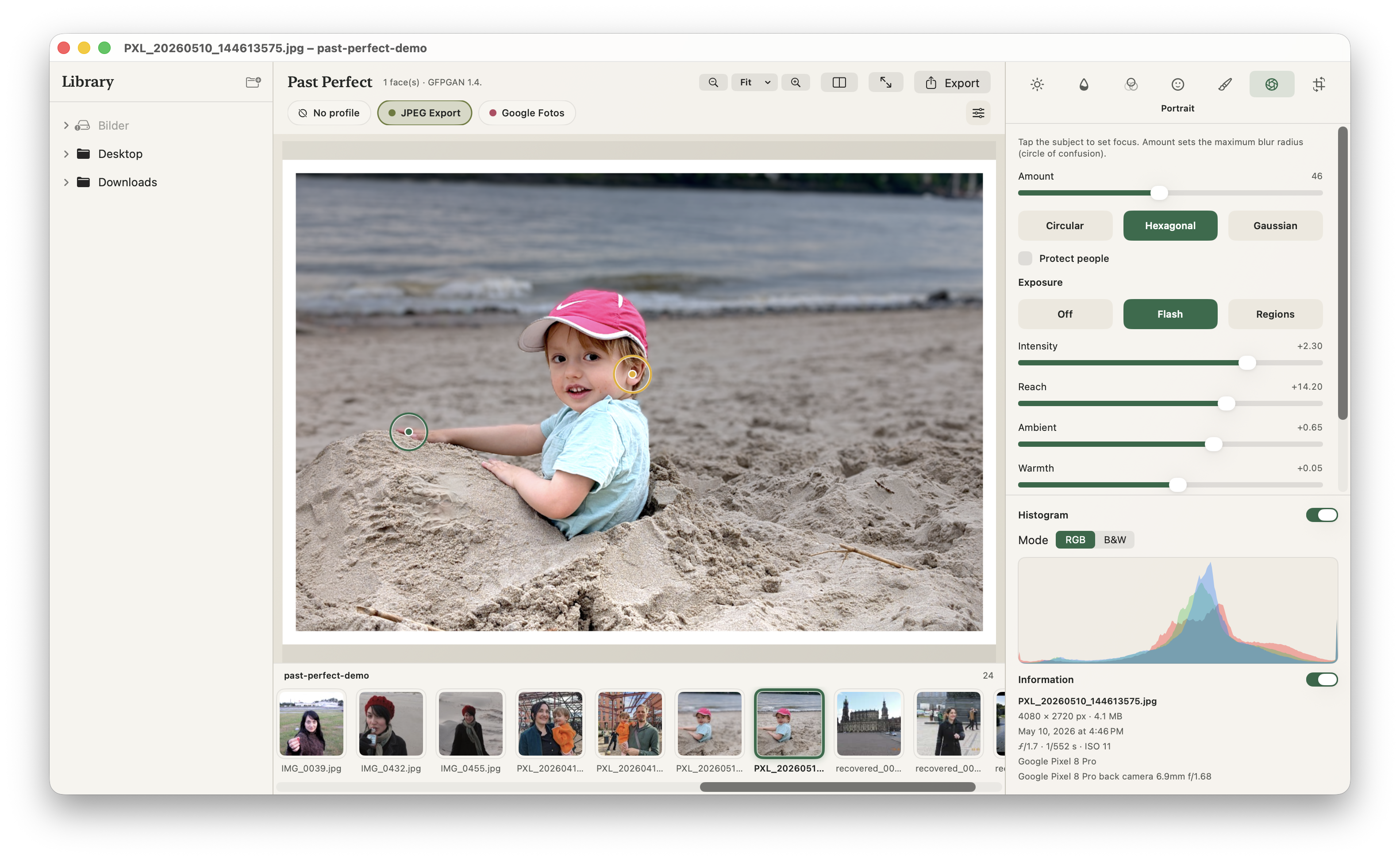
Support information for the Past Perfect Mac app, including system requirements, key workflows and feature notes.
Past Perfect is a photo editor for scans, family photos and everyday pictures. Editing runs entirely on the device, so your photos are not uploaded.
Past Perfect works non-destructively: your edits are saved automatically while the original image is preserved. The finished image is only created when you export. If Save copies is turned off, the original is overwritten.
Add one or more folders to the library using the sidebar. You can expand subfolders and then select a photo from the strip below the preview.
Right-click a folder in the library to remove it from the library or start batch processing. Files on disk are not deleted when a folder is removed from the library.
Useful keyboard shortcuts: ← / → for the previous or next photo, Cmd-E to export and Cmd-+ / Cmd-- to zoom.
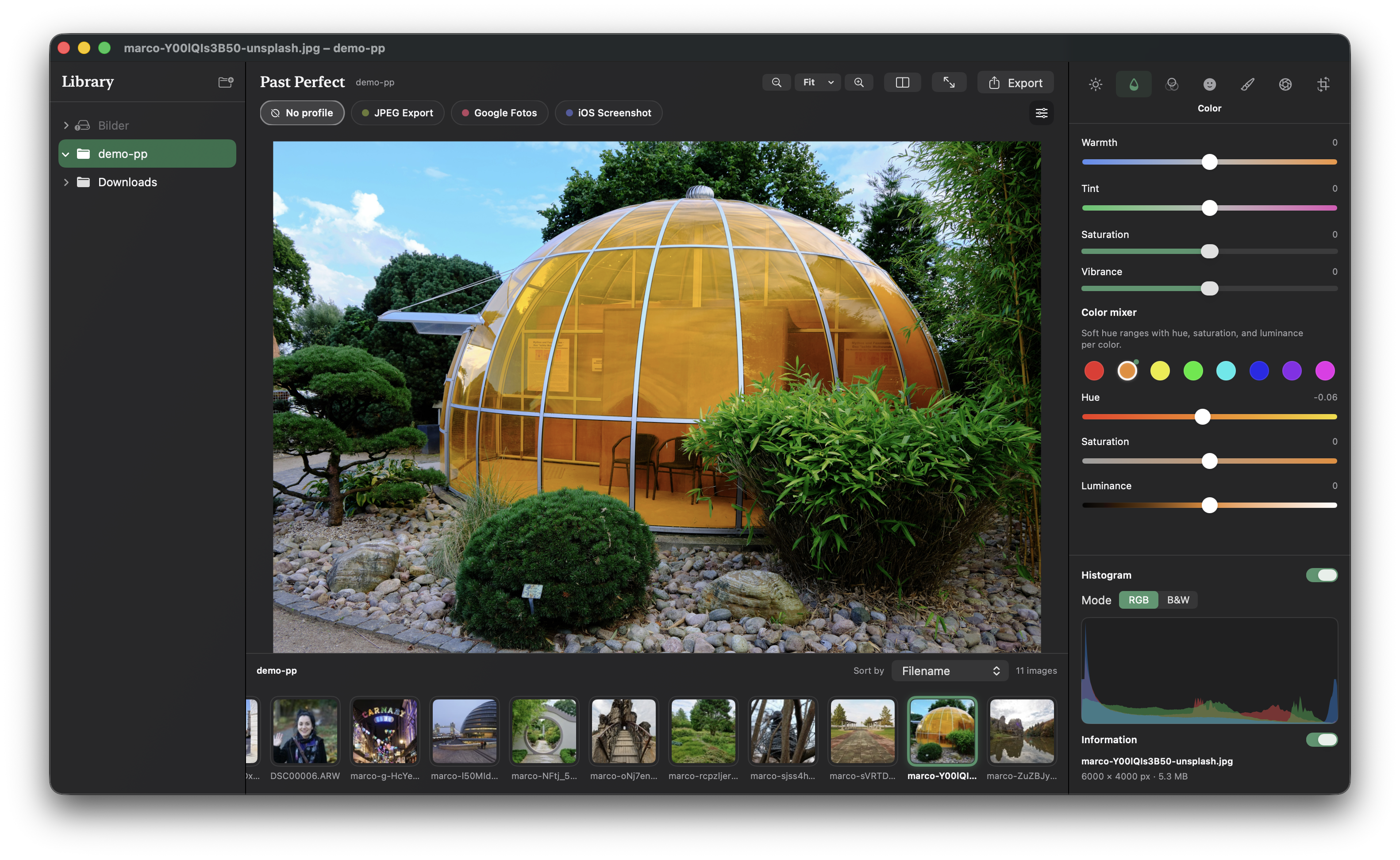
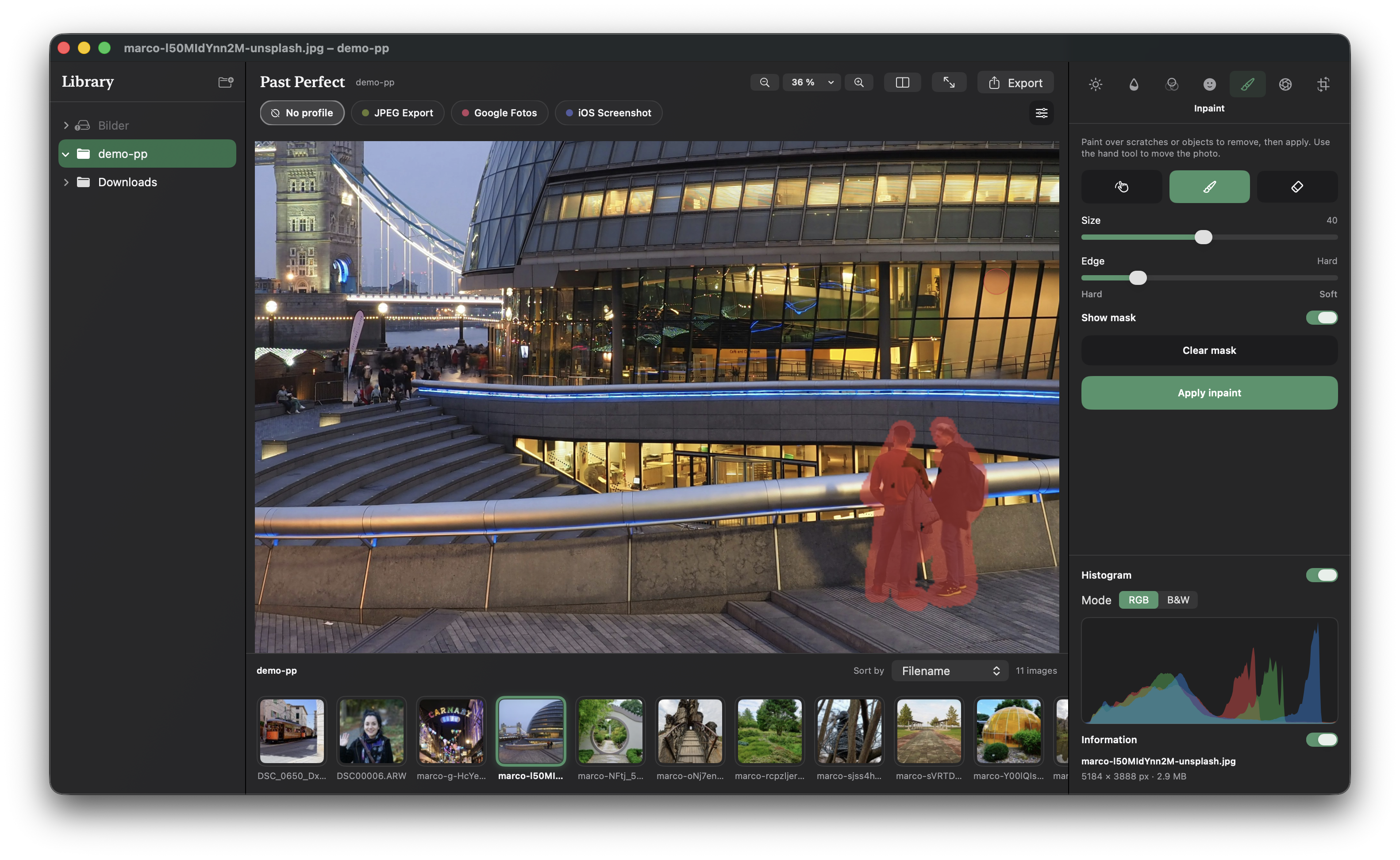
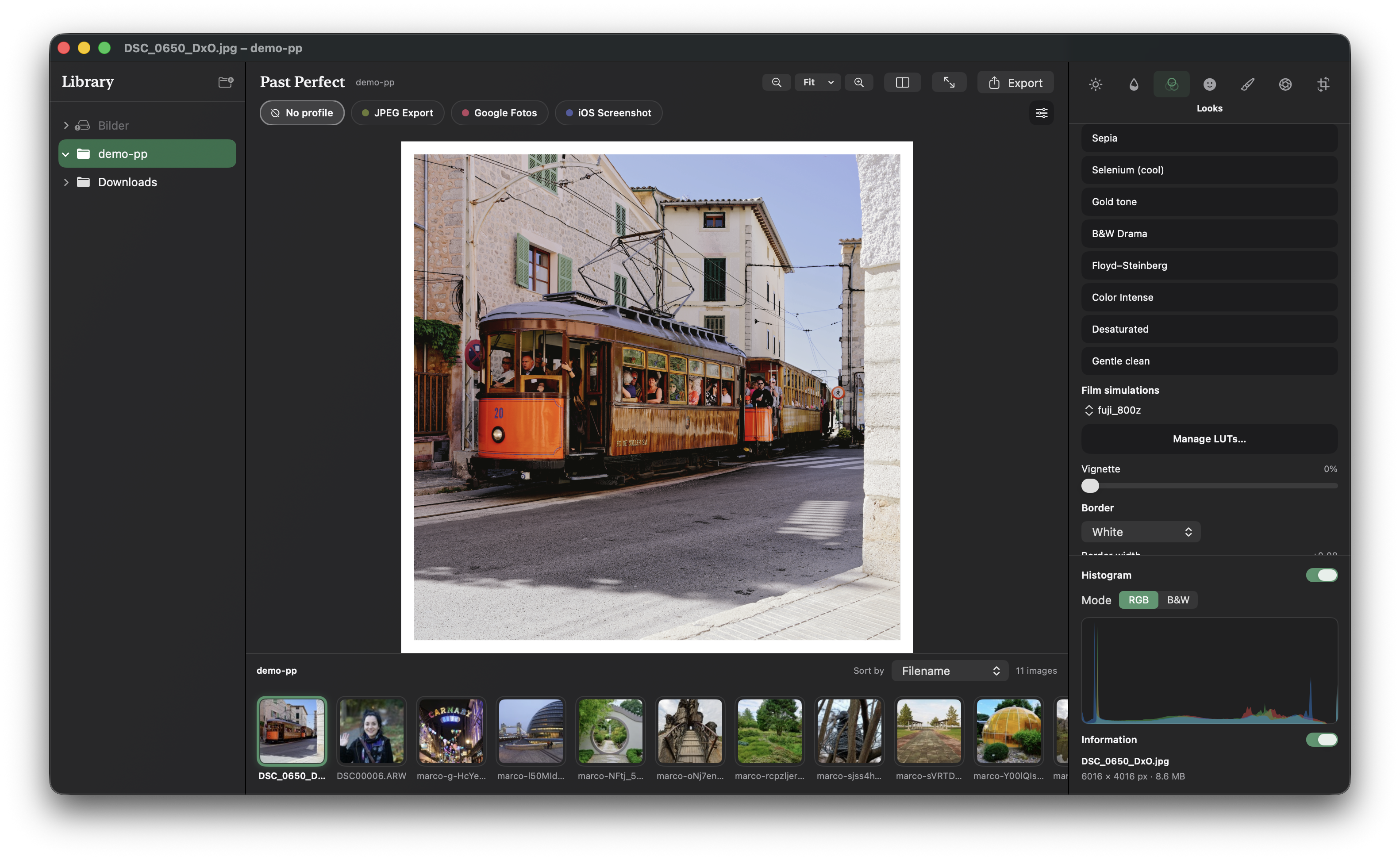
You will find the editing tools in the inspector on the right. They are grouped into tabs by task:
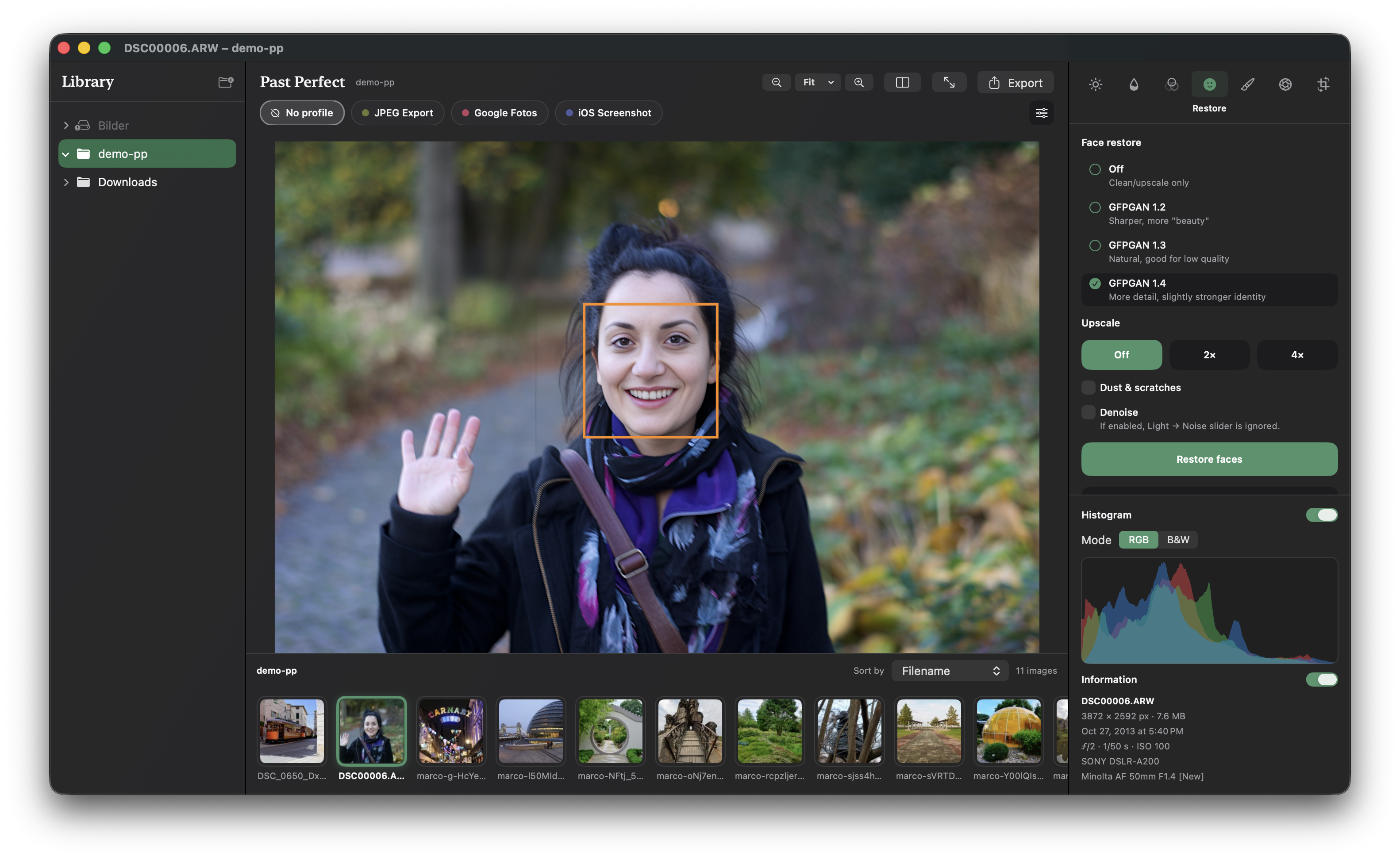
Under Restore, you can optionally clean up an image before face restoration. These functions are disabled by default and are only applied when you enable them:
If several Restore steps are enabled, they are processed in a fixed order: first dust and scratches, then denoise, followed by face restoration and finally optional upscaling.
The noise reduction under Light is a gentle adjustment that changes the image directly. Full-image denoise under Restore is a separate processing step and can also be included in a profile.
Three GFPGAN versions are available for face restoration. No version is best for every photo, so if the result does not look natural, it is worth comparing the models:
GFPGAN detects faces and then automatically enhances them. It can convincingly reconstruct lost details and typical damage in old or small portraits. Very small faces contain little actual image information, however, while very large faces can make AI changes more noticeable. Always compare the result with the original.
Practical tip: With very high-resolution portraits, face restoration can produce an overly smooth or artificial result. In such cases, another GFPGAN model may work better. Version 1.3 is particularly suitable when the correction should be as subtle as possible.
Face restoration can be enabled or disabled independently of upscaling. For 2x or 4x upscaling, you can use Lanczos and, if the model is available, Real-ESRGAN. At 1x, no additional upscaling is performed.
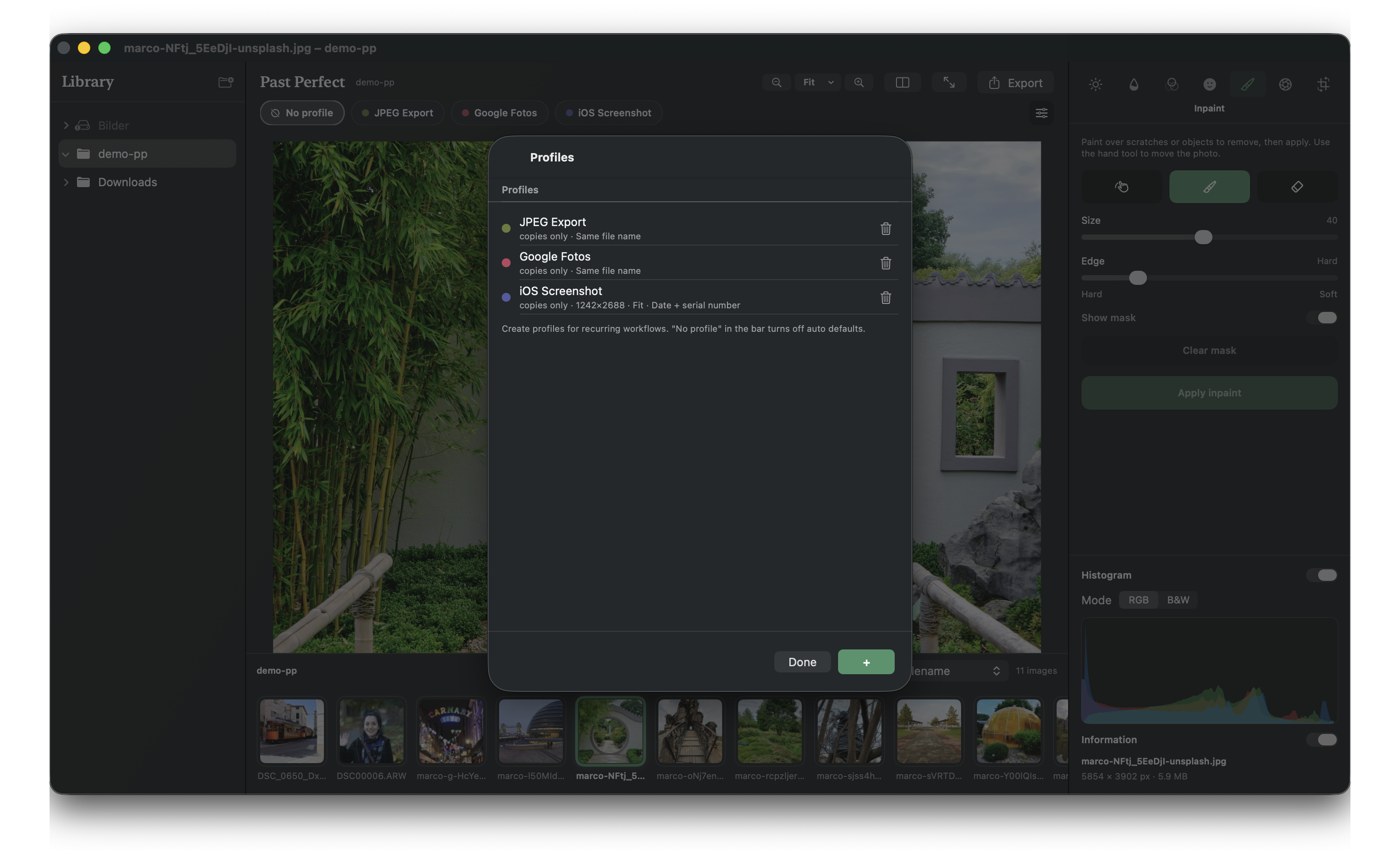
Profiles save a combination of editing steps and export settings. This lets you reuse a proven workflow with just a few clicks. Manage profiles via Manage profiles or the gear icon next to the profile buttons.
Each profile can define:
When you select a profile, its settings are applied to the current photo. With No Profile, you can return to manual editing.
To process several images at once, right-click a folder in the library, choose Batch Processing and then select a profile. Past Perfect processes the readable images in the folder one by one and saves the results according to the profile's rules.
A progress window shows which image is currently being processed. Batch processing can be cancelled between two images.
For batch processing, the destination must be defined in advance. Use a fixed export folder or Next to original in the profile. Ask every time cannot be used for batch processing.
The output format is also defined by the profile, for example same as source, HEIC, JPEG or PNG.
Edits are saved automatically. There is no separate Save command; when you move to the next photo, your editing state is preserved.
Press Cmd-E to export the current image. The active profile's settings are used. With Save copies, a new file is created; without it, the original is overwritten. If transparency should be preserved, PNG is the appropriate format.
Camera RAW files such as ARW, NEF, DNG or CR2/CR3 can be opened and edited. They are not overwritten; for export, use a profile with Save copies.
Reset All removes the saved editing steps and restores the original editing state. Once the original has been overwritten, the previous version cannot be restored.