Past Perfect for iPhone & iPad
Support documentation for the iOS app — a focused, on-device workflow for editing and restoring photos with Apple Vision and GFPGAN AI.
System requirements
- An iPhone or iPad running iOS 17 or later.
- Local storage for the photos you import and the copies you save.
- An internet connection is only needed for downloading or updating the app. Editing and restoration run entirely on your device.
Overview
Past Perfect is a photo editor for digital shots, family photos and everyday pictures. Everything runs on your device — your photos are not uploaded for editing.
The iOS app is built around a clear single-photo flow: open a photo, edit it, then save a finished copy to Photos or Files when you are ready.
Getting started
From the home screen you can:
- Choose from Photos: Open an image directly from your iOS photo library.
- Open from Files: Import an image from Files, iCloud Drive, or external drives on your device.
- Share into Past Perfect: Send an image from other apps using the system share sheet.
Once a photo is open, tools appear along the bottom of the screen. Use the before/after control to compare your edits with the original.
Editing tools
Tools are grouped by task:
- Light: Adjusts brightness and tonal values, including exposure, contrast, highlights, shadows, black point and white point. It also includes midtones, noise, clarity and sharpness. Automatically improve analyzes the image and suggests suitable slider values.
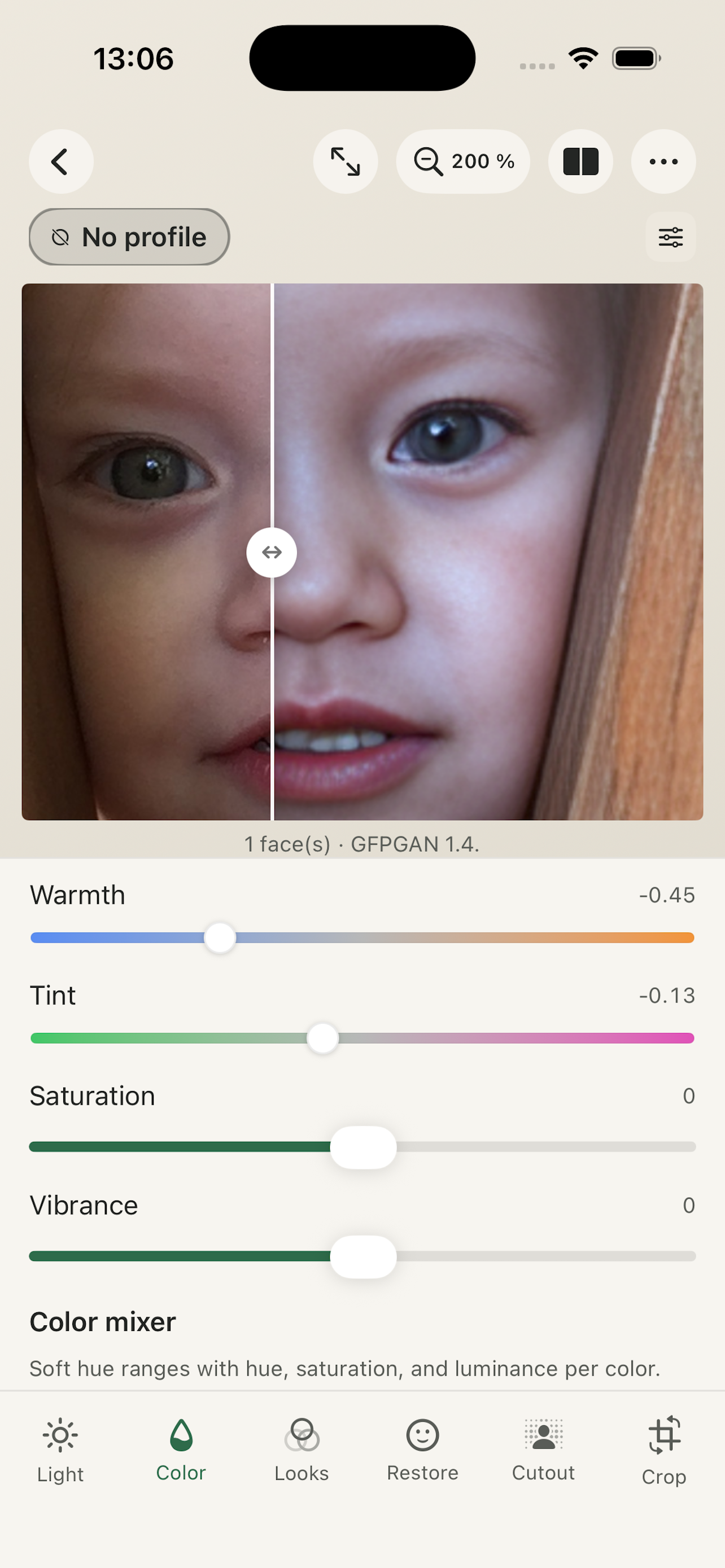
- Color: Provides temperature, color cast, saturation and vibrance, plus a Color Mixer for eight color ranges. You can also import LUT files and use them as a color look.
- Looks: Contains ready-made image looks, including black-and-white, color and dithering looks. Looks can be mixed with the original image. You will also find vignetting and frames here.
- Restore: Contains optional tools for cleaning up and restoring damaged or out-of-focus images: dust and scratches, denoise, face restoration and upscaling.
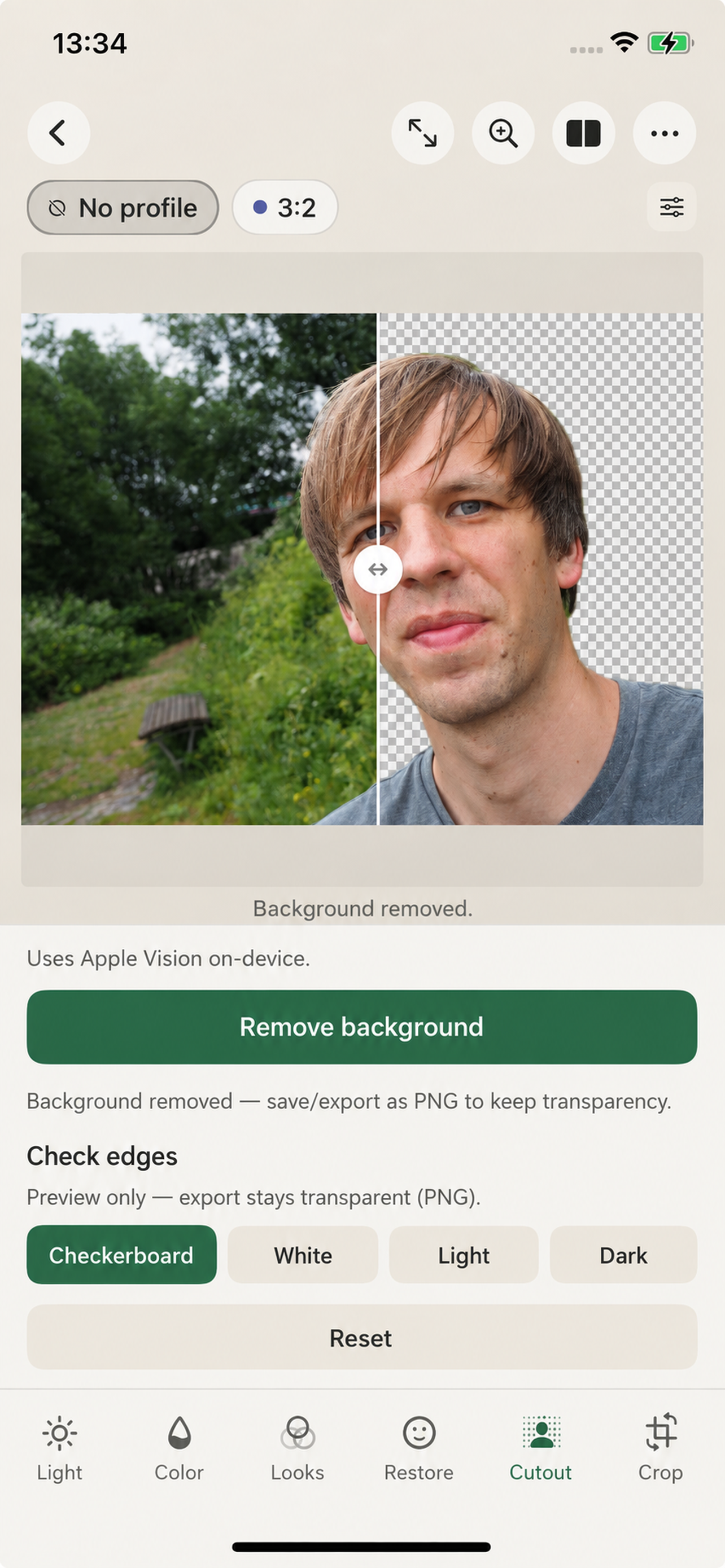
- Cutout: Removes the background using Apple Vision on the device. Save as PNG when you want to keep transparency.
- Transform: Lets you rotate and mirror images, straighten the horizon and crop to the desired aspect ratio.
Cutout
Cutout uses Apple Vision to separate the subject from the background, entirely on your device. When transparency matters, save the result as PNG — for example via Save to Files or Share.
Restore faces & focus
Three GFPGAN versions are available for face restoration. No single version suits every photo — if the result does not look natural, try another model:
- GFPGAN 1.4: Intervenes the least and is best for subtle correction with minimal “AI look”. It works well when you want only light improvement, including on low-quality or slightly out-of-focus shots. It is not necessarily the best choice for heavily damaged faces.
- GFPGAN 1.3: The default. It can apply a more noticeable correction than 1.4 — though that depends on the photo. If 1.3 feels too strong or artificial, switch to 1.4.
- GFPGAN 1.2: Generally not recommended. It tends toward a strong “beauty” look with over-sharpened, over-drawn detail that can appear artificial.
Profiles
Profiles save a combination of editing steps so you can reuse a proven look with a tap. Manage them from the profile bar or the editor menu.
When you select a profile, its settings are applied to the current photo. With No Profile, you can return to manual editing.
Saving your work
Your original stays untouched. When you are happy with the result, create a new copy:
- Save to Photos: Adds the finished image to your photo library. Cutouts with transparency are stored as PNG.
- Save to Files: Lets you choose a destination folder and format.
- Share: Opens the iOS system share sheet so you can send the image to AirDrop, Messages, or another app.
Edits live in your current session. After you save or share a copy, you can keep refining or close the photo and open another.
Privacy
Past Perfect is designed to keep your photos on your device. Editing, restoration and AI processing run offline. Your images are not uploaded to our servers.
The only network use related to your app usage is optional crash diagnostics via Sentry. A full privacy notice is available here: Privacy notice.
Photos and editing data
- Photos and saved copies stay on your iPhone or iPad (or other local storage you choose).
- Face restoration, upscaling, denoise, cutout and other tools run on-device.
- We do not operate a cloud library, account system or photo upload service for Past Perfect.
Contact
Privacy questions about Past Perfect: m.wilka@gmail.com